Lumina
What Is Lumina: AI Image, Video, Canvas & Agents in One Platform
Lumina brings AI images, video, Canvas and AI agents into one account. What you can do with it, how plans and credits work, which model to choose for which task, and how the affiliate program works.
Read the Article →
Image Generation
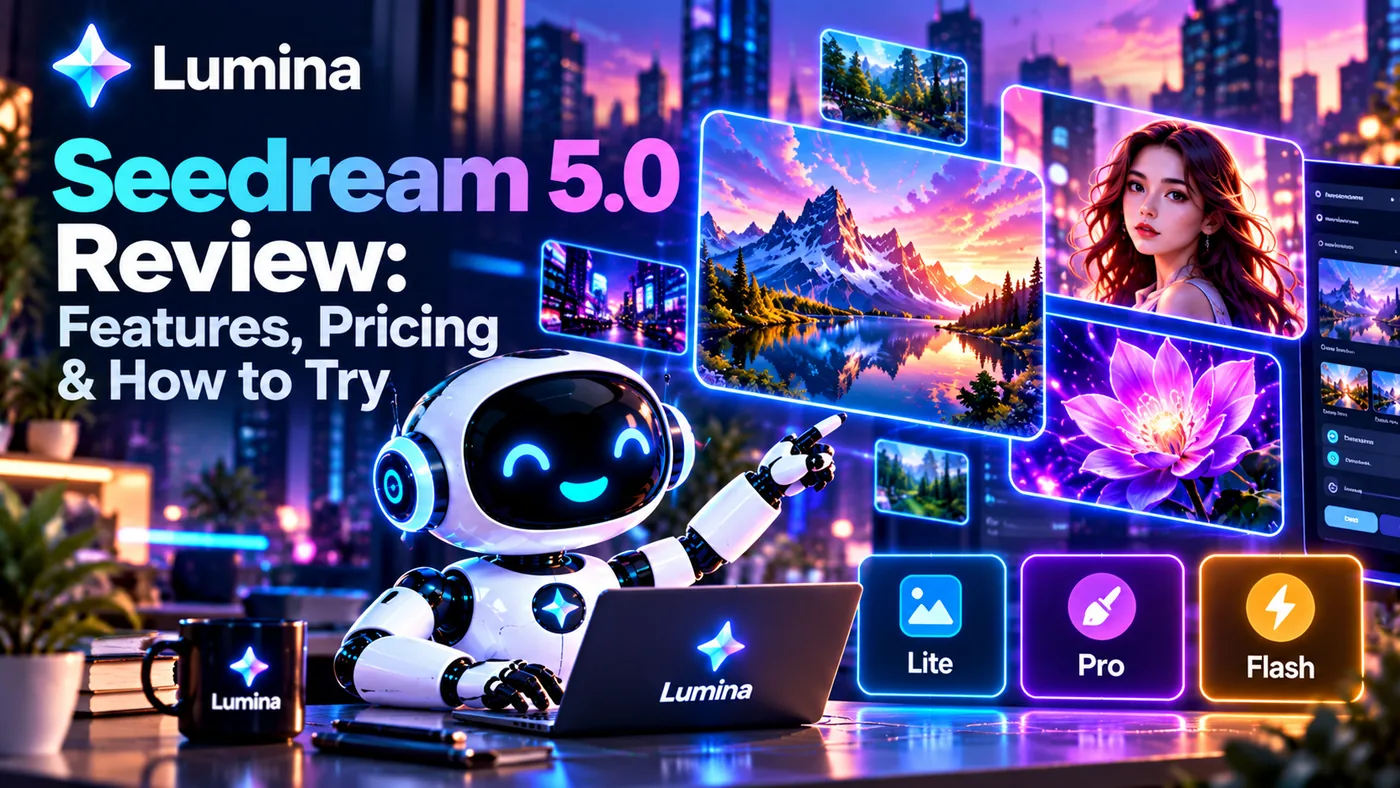
Seedream 5.0 Review: Features, Pricing & How to Try
An honest review of Seedream 5.0 by BytePlus: features, pricing from $0.035 per image, and a comparison of the Lite, Pro and Flash versions.
Plus how to get started via the API.
Read Full Review →
Video Generation
Seedance Review: AI Video Generation by BytePlus
An honest review of Seedance by BytePlus, the AI video generator with native 4K. Pricing starts from $0.04 per second.
Standard, Fast and Mini versions compared. Prices verified October 2026.
Read Full Review →
Developer Guide
BytePlus ModelArk: Complete Guide to the AI Model Hub
A practical step-by-step guide to setting up BytePlus ModelArk and making your first Seedream 5.0 API call.
From zero to a generated image in under 10 minutes.
Read the Guide →
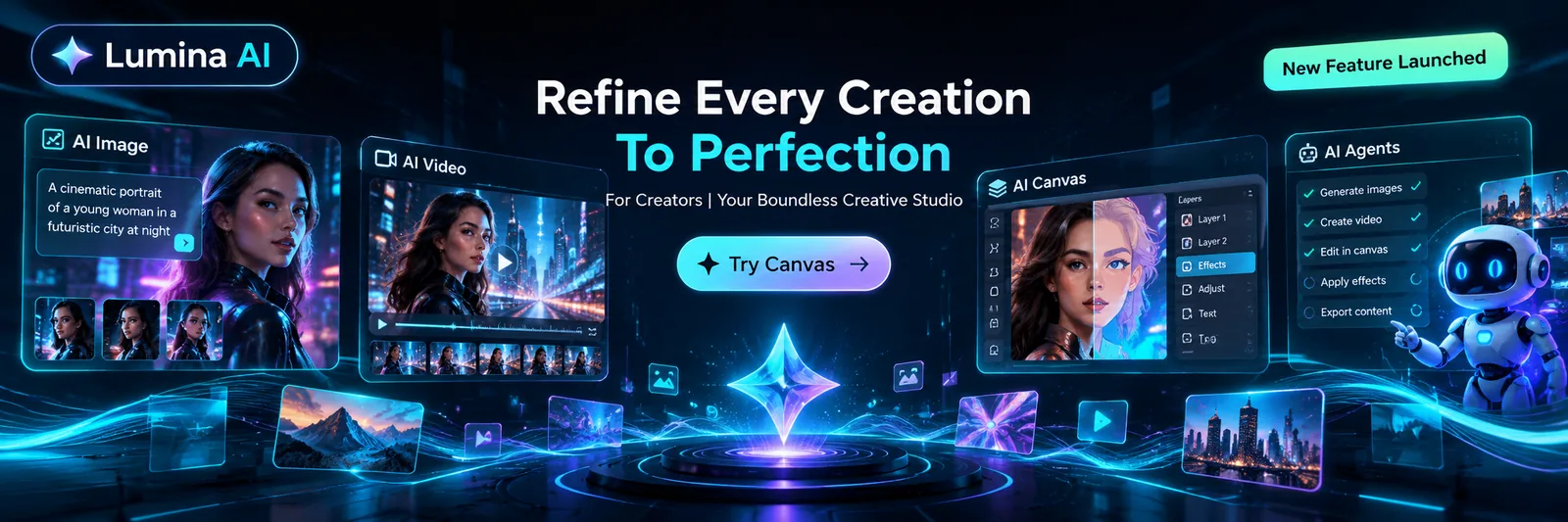
Lumina Guides & Tips
Practical prompts and tips for working with Lumina. Features, models and plans may change, so check the settings available in your own account.
How to Write a Good Portrait Prompt in Lumina
A good portrait prompt is not just "a beautiful person on a beautiful background". The more precisely you describe the light, the framing, the facial expression and the style, the fewer random details will appear in the result.
It is convenient to build a request from five parts:
- Who is in the frame: age range, appearance, clothing. Mention only the details that matter for the task.
- Framing: close-up, shoulder-length portrait, waist-up; the person's position in the frame; the direction of the gaze.
- Light: soft or contrasty, natural or studio, its direction and color.
- Expression and mood: a calm smile, a confident look, thoughtfulness, friendliness.
- Style and background: realistic photo, editorial shoot, minimalism; a studio, a street or a neutral background.
Example prompt
PromptA realistic editorial portrait of an adult woman with short dark hair, wearing a simple light shirt. Shoulder-length frame, the face placed slightly right of center, gaze directed at the camera. A calm, confident expression with a light natural smile. Soft diffused window light from the left, delicate shadows, natural skin tone. A neutral warm-gray background, shallow depth of field, restrained color grading, the feel of a modern magazine photo shoot.
How to refine a portrait
If the result is close to what you need, change only one or two parameters at a time. For example: "keep the composition, make the light softer" or "keep the style, change the expression to a friendlier one". This makes it easier to understand which instructions actually affected the image.
If the platform supports negative instructions, you can add: no extra people in the frame, no heavy retouching, no unnatural skin, no unnecessary accessories. Do not overload the request with a long list of prohibitions — it is better to state your important wishes directly and specifically.
When creating a portrait of a real person, use their image and personal data only with that person's permission.
How to Make Video in Seedance: Camera and Scene Movement
For a video prompt, it is important to describe not only what is in the frame but also what exactly changes over time. A useful formula:
FormulaSubject and place → action → camera movement → light and atmosphere → pace and restrictions.
Example: an atmospheric short clip
PromptA short cinematic scene: a cup of coffee stands on a table by the window in the early morning, an open book lies next to it. Steam slowly rises above the cup, the curtain moves slightly in the wind. The camera smoothly moves closer to the cup at table level, with no sudden jerks or changes of angle. Soft sunlight from the side, a calm cozy atmosphere, natural movement, the composition is kept throughout the scene.
Example: a clip with a person
PromptA young man in a dark blue coat walks along a city street after the rain. He stops for a second and looks at a shop window; the reflections of lights softly shimmer on the wet asphalt. The camera moves smoothly beside him at eye level, keeping him in the center of the frame. A natural gait, a calm pace, evening light, a realistic city atmosphere. No sharp camera movements and no sudden change of scene.
How to describe camera movement
- Slow push-in: the camera gradually approaches the subject.
- Pull-out: the camera smoothly moves away, revealing more of the surroundings.
- Pan: the camera turns to the side, showing the space.
- Tracking: the camera moves after a person or an object.
- Static shot: the camera stays still while the movement happens inside the scene.
It is better not to ask for too many actions at once. For a short video, one main action and one camera movement are enough. If you need several shots, changing locations or a complex sequence of events, it is more reliable to generate separate clips and edit them together.
Before launching, check, if these settings are available, the duration, the aspect ratio and the generation mode. For a social media clip a vertical format is often needed, and for YouTube a horizontal one. The Seedance interface and capabilities may be updated, so rely on the settings available in your Lumina account.
Lumina for Marketers: Creatives for Ads and Social Media
Lumina can help a marketer prepare visual concepts, advertising creative options and short videos faster. It is better to start not with generating "a beautiful picture" but with the task: who the material is addressed to, what needs to be communicated and what action is expected from the audience.
A working sequence
- State the goal: an announcement, a product launch, driving traffic to a website, promoting a sale, or raising awareness.
- Describe the audience and the message: who the creative is for and the one idea it should convey.
- Generate several visual directions: for example, product shots, lifestyle, minimalist graphics.
- Adapt the chosen option to placements: prepare separate versions for a vertical feed, stories or a horizontal banner.
- Add text and brand elements: if exact typography matters, it is more reliable to add or check captions, logos and legal disclaimers manually.
- Check brand and platform compliance: including legibility, rights to materials and advertising restrictions.
Example prompt for an advertising image
PromptAn advertising visual for a modern coffee shop. A glass of iced coffee with ice cubes in the foreground, on a light stone surface. In the background, a softly blurred summer terrace with greenery. Bright natural light, a clean composition, a fresh and light atmosphere. Leave free space on the right for adding advertising text. A vertical composition for publishing on social media, with no captions and no logos.
Example prompt for a short advertising video
PromptA short advertising clip for a new skincare line. A bottle stands on a light surface next to water drops and green leaves. The camera slowly moves closer to the product, highlights softly move across the glass. Clean studio light, a calm premium mood, the product stays the main subject of the frame. Leave a free area at the top of the frame for adding text during editing.
A prompt sets the concept but does not replace checking advertising requirements. Do not attribute unconfirmed properties to a product, and do not publish generated reviews or images as documentary materials.
How Not to Waste Your Credits
It is easier to save credits if you first test the idea and only then run a more resource-intensive generation. Exact limits and costs depend on the current Lumina terms, so before a series of runs, look at how the chosen model spends credits.
- Start with a short, clear prompt. First check the main composition, then add details.
- Use a draft or more economical mode, if available. Run the final generation after the style and direction are chosen.
- Change parameters gradually. Do not rewrite the whole request after every result — otherwise it is harder to understand what worked.
- Do not generate too many almost identical variants. First pick a few different concepts, and only then refine the best one.
- For video, describe one main action. Complex scenes with many characters and transitions more often require extra attempts.
- Prepare the prompt before launching. Decide in advance which format, framing, style and movement you need.
- Check the plan terms. Find out when credits renew, whether leftovers carry over, and whether limits differ between models.
It is useful to keep a simple note: the prompt, the chosen model, the settings and the result. That way successful wordings can be reused instead of spending credits searching for a solution you have already found.
Lumina for YouTube: Thumbnails, Intros and Short Clips
For YouTube, you can use Lumina at several stages of production: from a thumbnail concept to a short intro or a vertical clip. AI helps prepare the visual base, but the final check is best done at the real publication size.
Thumbnails
When generating a thumbnail, set the main subject, the emotion or the plot contrast, and leave room for the title. Do not ask the model to draw important text inside the image: the lettering may come out blurry or with mistakes. It is better to add the title separately in a graphics editor.
PromptA high-contrast thumbnail for a YouTube video about a home coffee setup. In the foreground, a close-up of a cup with latte art, on the right a surprised face of the author, in the background a tidy coffee station. Bright but natural light, a clear separation of foreground and background. Leave free space on the left for a large title. A horizontal composition, with no text and no logos.
After generating, check whether the composition reads at a small size, whether the planned title covers an important detail, and whether the thumbnail matches the content of the video.
Intros
For an intro, a simple scene with one visual accent usually works better. Describe the appearance of the object, the camera movement, and the moment where a clean frame should remain for the channel name.
PromptA short minimalist intro for a travel YouTube channel. On a dark blue background, a glowing outline of a mountain ridge gradually appears, then the camera smoothly moves closer to a single peak. Soft glow, calm movement, a clean composition, no text and no sharp transitions. At the end, leave a still frame with empty space in the center for adding the channel name.
Short clips
For Shorts and other vertical formats, set a vertical composition in advance and keep the main action in the center of the frame. If the clip involves a story, it is more convenient to make separate short scenes, then join them in editing and add captions manually.
PromptA vertical short clip about a quick breakfast recipe. Ingredients lie on a kitchen board, hands quickly put them into a pan, then the shot shows the finished dish in close-up. The camera smoothly follows the action from above, natural hand movements, light morning light. The composition is designed for a vertical screen, with no text and no logos.
It is useful to note that the availability of individual models, modes and plan terms may change. Before publishing, also check the rights to the images, music and brands used, and any resemblance to real people.